Physical Address
304 North Cardinal St.
Dorchester Center, MA 02124
Physical Address
304 North Cardinal St.
Dorchester Center, MA 02124

A practical, no-fluff checklist for keeping your WordPress site secure, fast, and running smoothly all year. Organized by frequency so you know exactly what to do and when.
WordPress powers roughly 43% of all websites on the internet. That’s an incredible number, and it also means WordPress is the single biggest target for hackers, bots, and every kind of automated attack you can imagine. Keeping your site maintained isn’t optional. It’s the difference between a site that runs for years and one that gets hacked on a Tuesday afternoon because you forgot to update a plugin.
The problem with most maintenance advice is that it’s vague. “Keep things updated.” Sure, but how often? Which updates matter most? What should you actually check every week versus once a year? This checklist breaks it all down by frequency so you can build a routine that actually sticks.
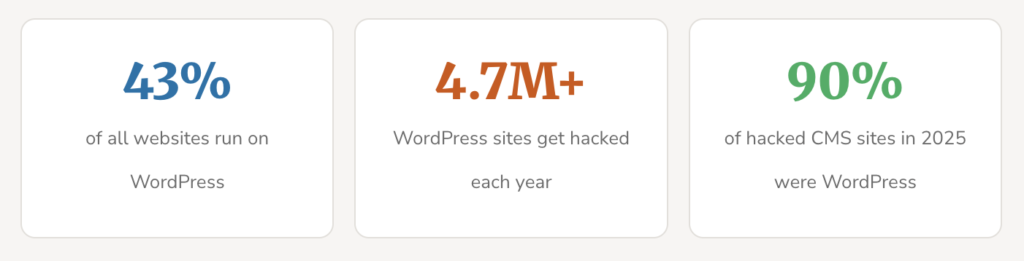
Some quick context on why this matters: roughly 4.7 million WordPress sites get hacked every year, and about 90% of all hacked CMS sites are WordPress. That’s not because WordPress is insecure. It’s because WordPress is popular, which makes it a target. The sites that get compromised are almost always the ones that fell behind on updates, ran abandoned plugins, or never set up monitoring.
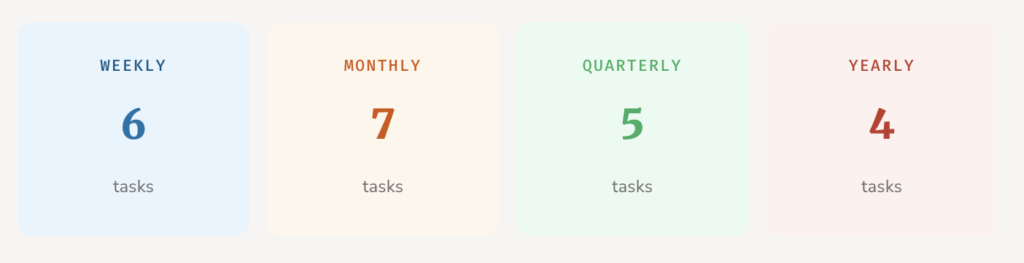
Here’s the full checklist: 6 weekly tasks, 7 monthly tasks, 5 quarterly tasks, and 4 yearly tasks.
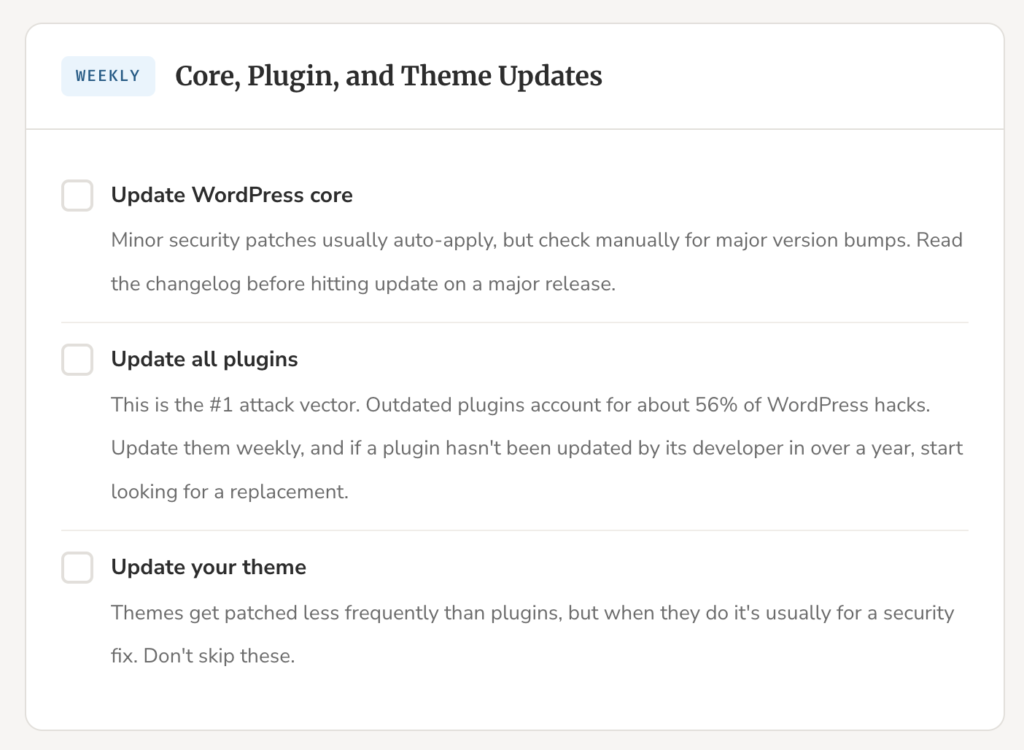
These are the things that take 15 to 30 minutes total but prevent the majority of WordPress problems. If you only follow one section of this checklist, make it this one.
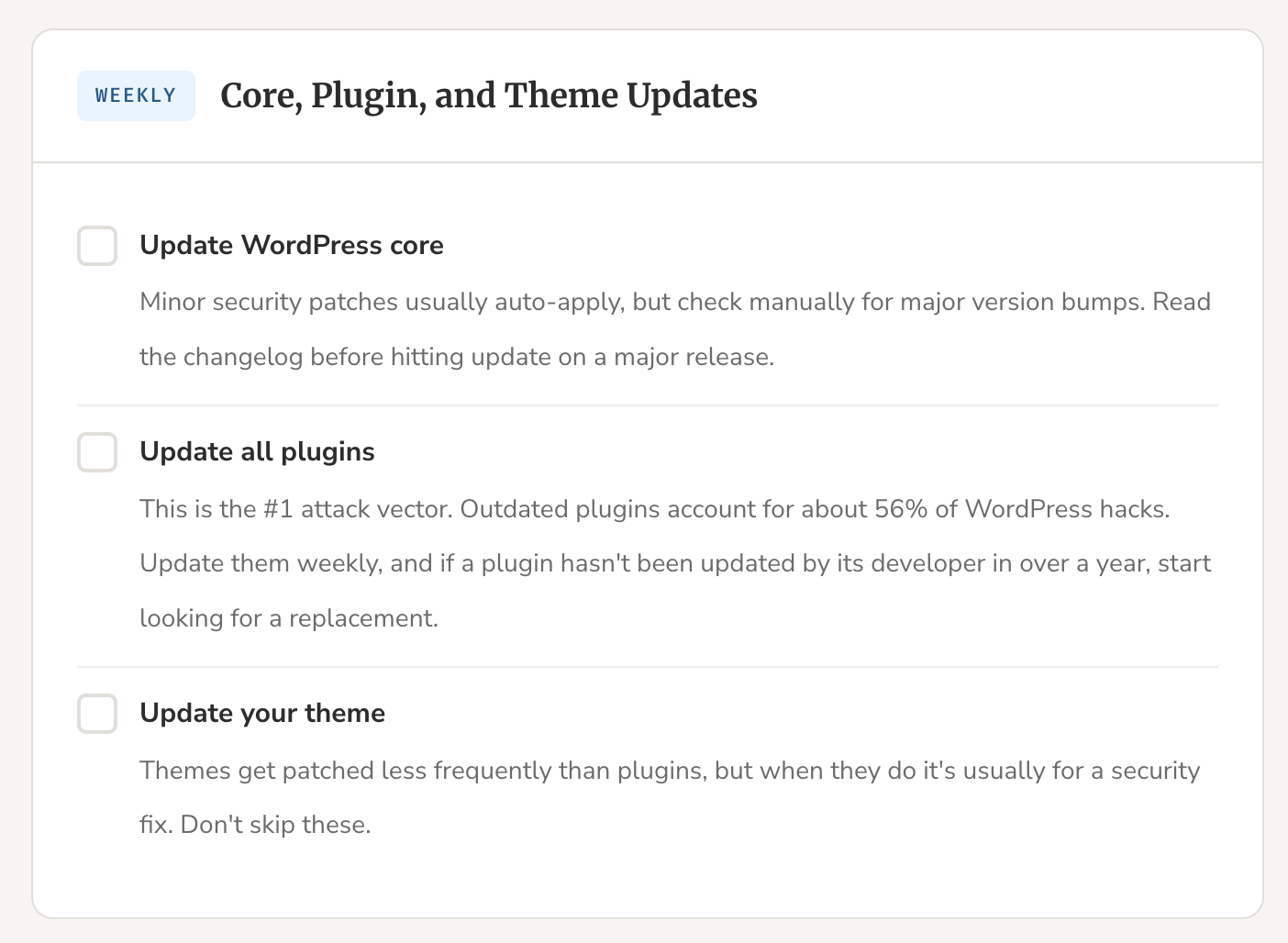
Update WordPress core. Minor security patches usually auto-apply, but check manually for major version bumps. Read the changelog before hitting update on a major release.
Update all plugins. This is the #1 attack vector. Outdated plugins account for about 56% of WordPress hacks. Update them weekly, and if a plugin hasn’t been updated by its developer in over a year, start looking for a replacement.
Update your theme. Themes get patched less frequently than plugins, but when they do it’s usually for a security fix. Don’t skip these.
Always take a backup before running updates, especially major ones. If an update breaks something, you want a restore point from the last 30 minutes, not the last 30 days.
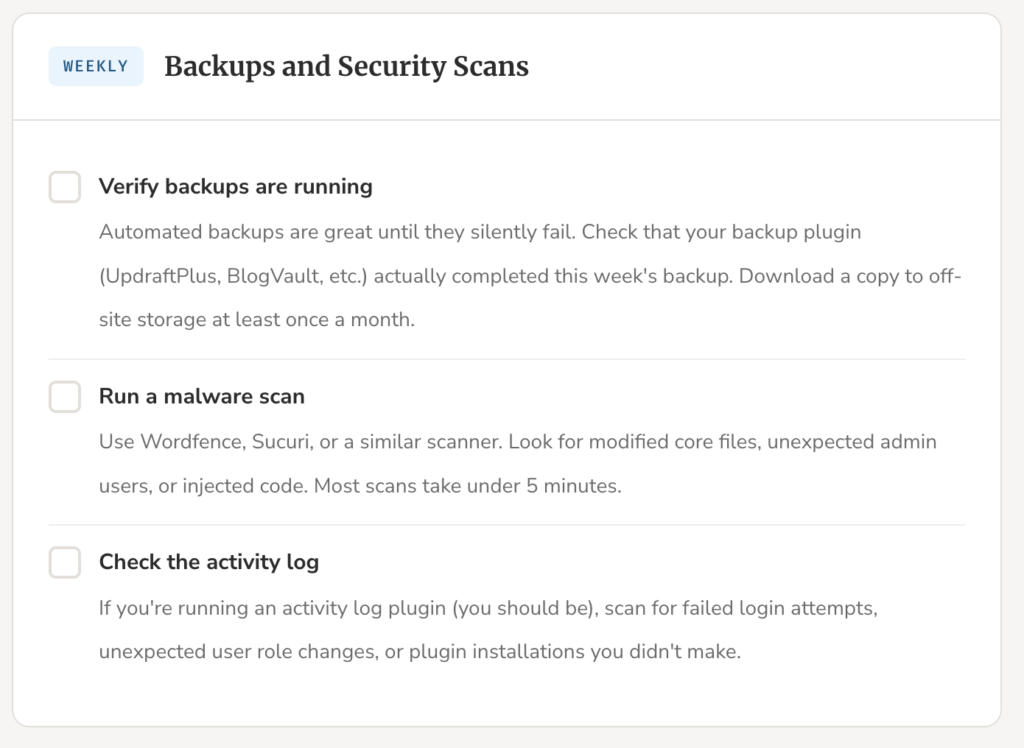
Verify backups are running. Automated backups are great until they silently fail. Check that your backup plugin (UpdraftPlus, BlogVault, etc.) actually completed this week’s backup. Download a copy to off-site storage at least once a month.
Run a malware scan. Use Wordfence, Sucuri, or a similar scanner. Look for modified core files, unexpected admin users, or injected code. Most scans take under 5 minutes.
Check the activity log. If you’re running an activity log plugin (you should be), scan for failed login attempts, unexpected user role changes, or plugin installations you didn’t make.
Monthly checks are where you catch the stuff that doesn’t break your site overnight but slowly degrades it. Performance issues, SEO problems, and the kind of database bloat that makes your hosting bill climb.
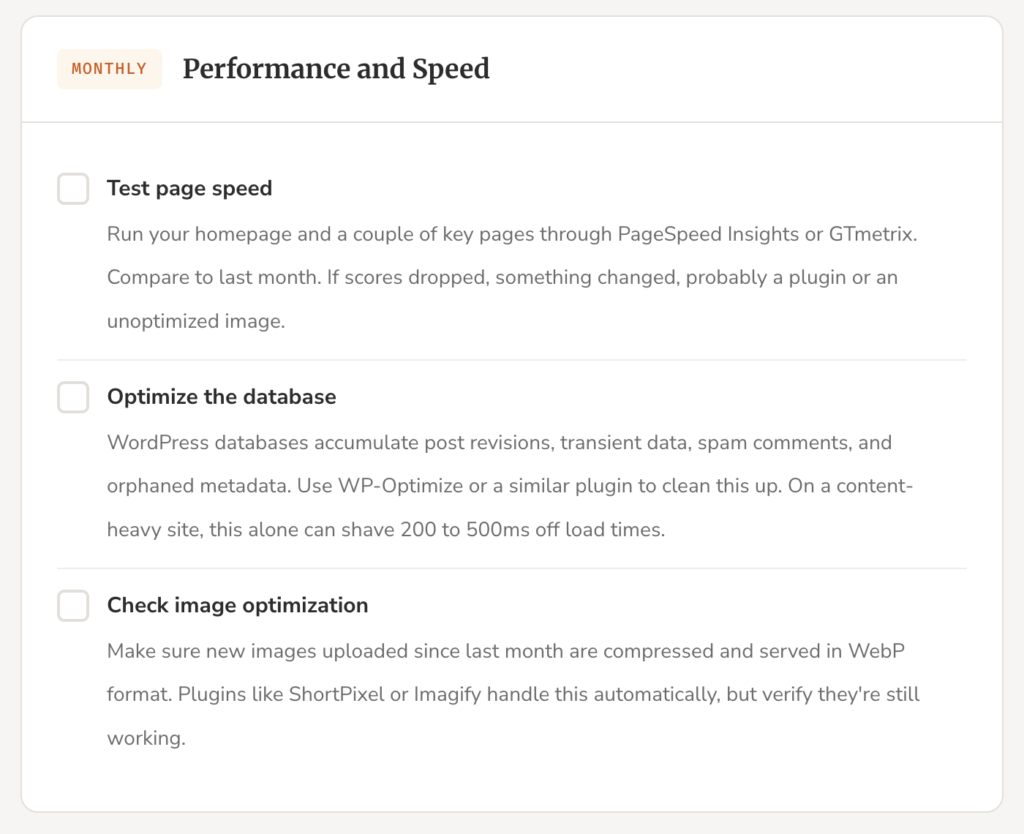
Test page speed. Run your homepage and a couple of key pages through PageSpeed Insights or GTmetrix. Compare to last month. If scores dropped, something changed, probably a plugin or an unoptimized image.
Optimize the database. WordPress databases accumulate post revisions, transient data, spam comments, and orphaned metadata. Use WP-Optimize or a similar plugin to clean this up. On a content-heavy site, this alone can shave 200 to 500ms off load times.
Check image optimization. Make sure new images uploaded since last month are compressed and served in WebP format. Plugins like ShortPixel or Imagify handle this automatically, but verify they’re still working.
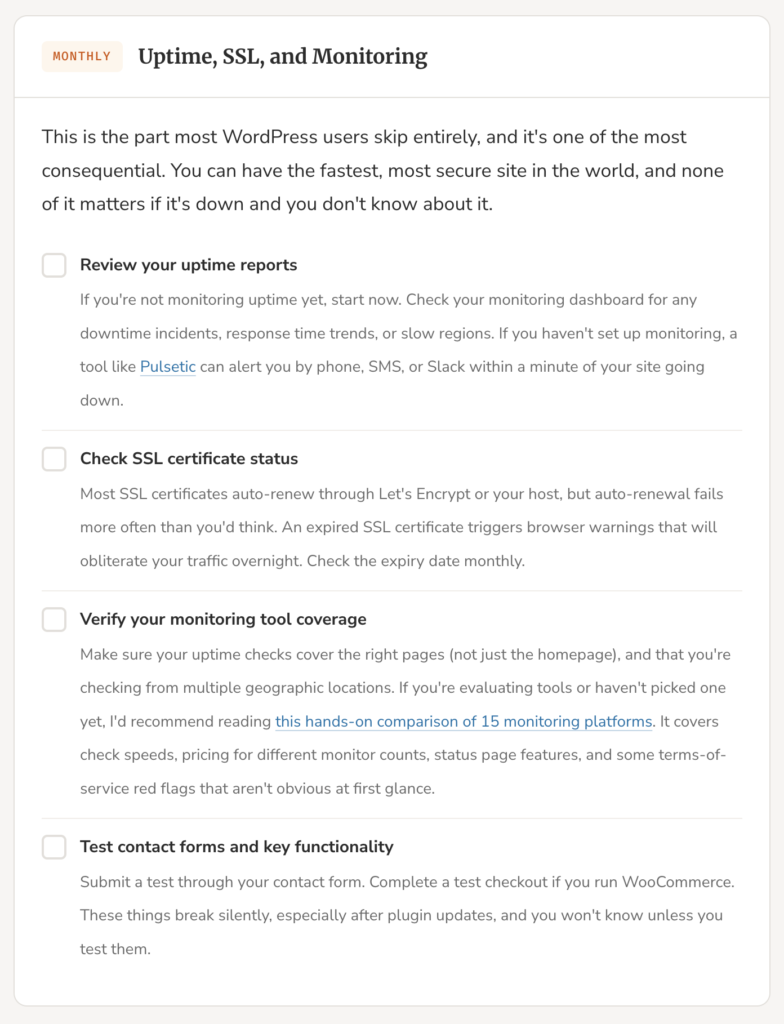
This is the part most WordPress users skip entirely, and it’s one of the most consequential. You can have the fastest, most secure site in the world, and none of it matters if it’s down and you don’t know about it.
Review your uptime reports. If you’re not monitoring uptime yet, start now. Check your monitoring dashboard for any downtime incidents, response time trends, or slow regions. A tool like Pulsetic can alert you by phone, SMS, or Slack within a minute of your site going down.
Check SSL certificate status. Most SSL certificates auto-renew through Let’s Encrypt or your host, but auto-renewal fails more often than you’d think. An expired SSL certificate triggers browser warnings that will obliterate your traffic overnight. Check the expiry date monthly.
Verify your monitoring tool coverage. Make sure your uptime checks cover the right pages (not just the homepage), and that you’re checking from multiple geographic locations. If you’re evaluating tools or haven’t picked one yet, I’d recommend reading this hands-on comparison of 15 monitoring platforms. It covers check speeds, pricing for different monitor counts, status page features, and some terms-of-service red flags that aren’t obvious at first glance.
Test contact forms and key functionality. Submit a test through your contact form. Complete a test checkout if you run WooCommerce. These things break silently, especially after plugin updates, and you won’t know unless you test them.
One common mistake: many WordPress users assume their hosting provider monitors uptime for them. Most shared hosts don’t, and even managed hosts typically only check basic server availability, not whether your actual site loads correctly for visitors.
Every three months, step back and look at the bigger picture. These tasks are about cleaning house and making sure you’re not accumulating technical debt.
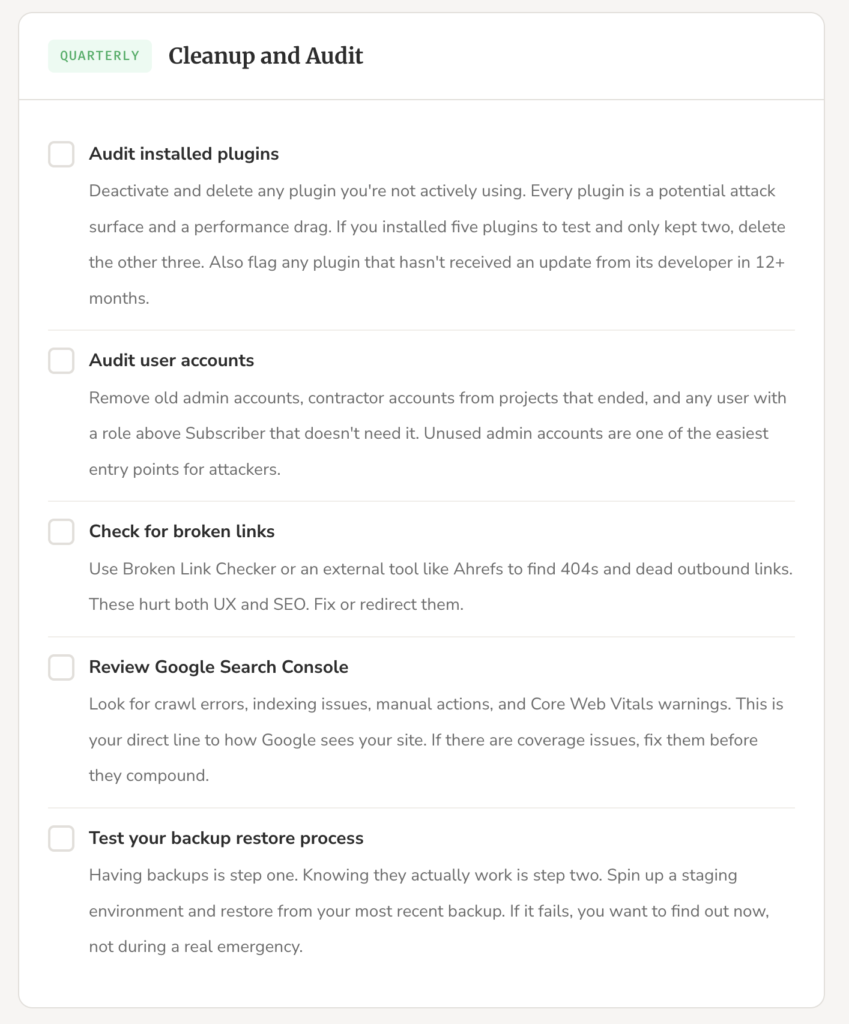
Audit installed plugins. Deactivate and delete any plugin you’re not actively using. Every plugin is a potential attack surface and a performance drag. If you installed five plugins to test and only kept two, delete the other three. Also flag any plugin that hasn’t received an update from its developer in 12+ months.
Audit user accounts. Remove old admin accounts, contractor accounts from projects that ended, and any user with a role above Subscriber that doesn’t need it. Unused admin accounts are one of the easiest entry points for attackers.
Check for broken links. Use Broken Link Checker or an external tool like Ahrefs to find 404s and dead outbound links. These hurt both UX and SEO. Fix or redirect them.
Review Google Search Console. Look for crawl errors, indexing issues, manual actions, and Core Web Vitals warnings. This is your direct line to how Google sees your site. If there are coverage issues, fix them before they compound.
Test your backup restore process. Having backups is step one. Knowing they actually work is step two. Spin up a staging environment and restore from your most recent backup. If it fails, you want to find out now, not during a real emergency.
Once a year, do the deep work. This is about long-term planning and reevaluating decisions you made 12 months ago.
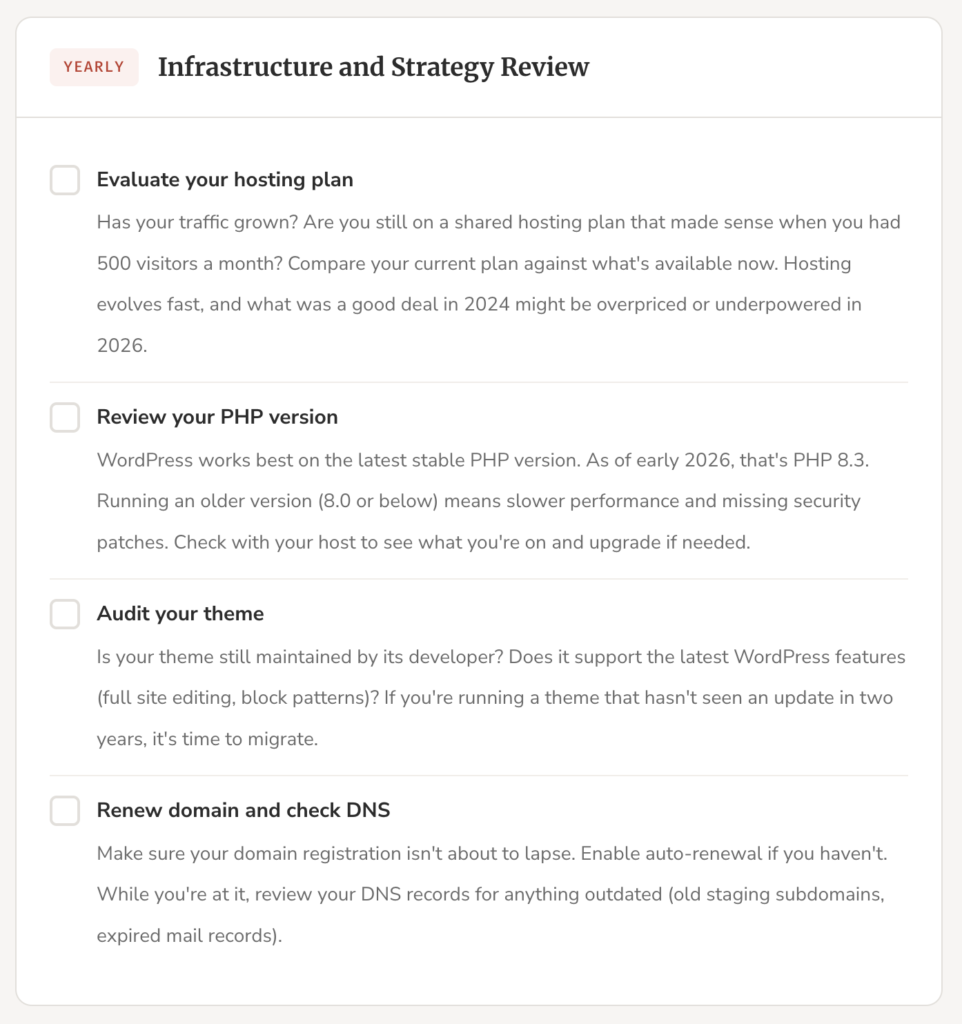
Evaluate your hosting plan. Has your traffic grown? Are you still on a shared hosting plan that made sense when you had 500 visitors a month? Compare your current plan against what’s available now. Hosting evolves fast, and what was a good deal in 2024 might be overpriced or underpowered in 2026.
Review your PHP version. WordPress works best on the latest stable PHP version. As of early 2026, that’s PHP 8.3. Running an older version (8.0 or below) means slower performance and missing security patches. Check with your host to see what you’re on and upgrade if needed.
Audit your theme. Is your theme still maintained by its developer? Does it support the latest WordPress features (full site editing, block patterns)? If you’re running a theme that hasn’t seen an update in two years, it’s time to migrate.
Renew domain and check DNS. Make sure your domain registration isn’t about to lapse. Enable auto-renewal if you haven’t. While you’re at it, review your DNS records for anything outdated (old staging subdomains, expired mail records).
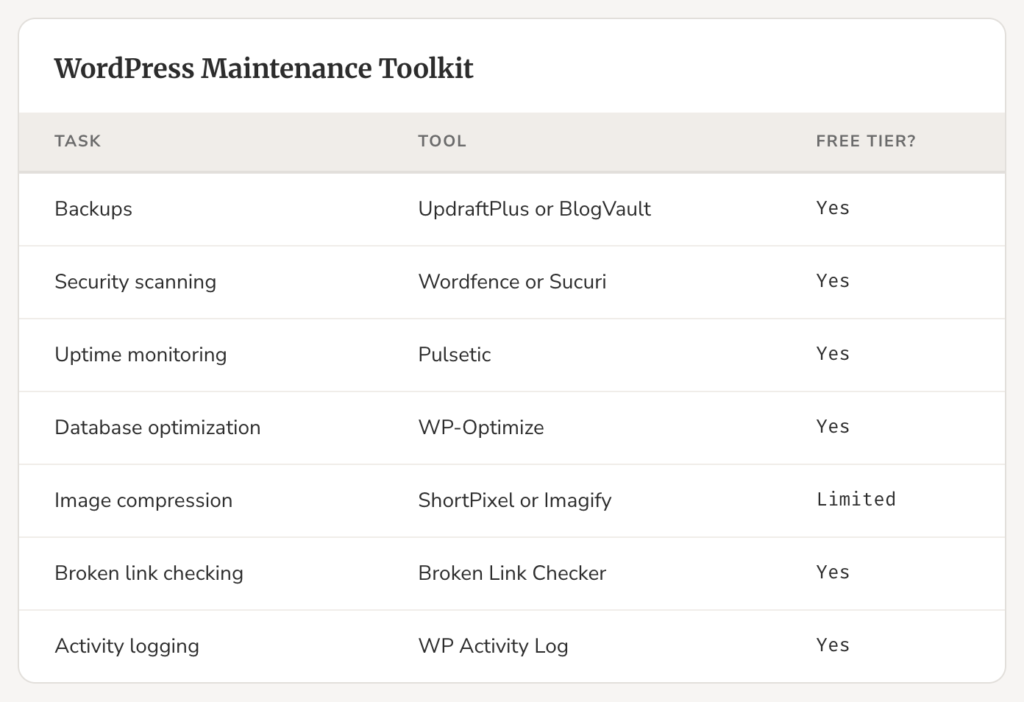
You don’t need twenty plugins to maintain a WordPress site. A focused toolkit covers almost everything. For backups, UpdraftPlus or BlogVault. For security scanning, Wordfence or Sucuri. For uptime monitoring, Pulsetic. For database optimization, WP-Optimize. For image compression, ShortPixel or Imagify. For broken link checking, Broken Link Checker. For activity logging, WP Activity Log. Most of these have free plans that work perfectly well for a single site.
Some of these tasks can and should run on autopilot. WordPress auto-updates for minor releases are enabled by default since version 5.6. You can also enable auto-updates for individual plugins directly from the Plugins page in your dashboard. If you want to enable auto-updates for everything, add these lines to your wp-config.php:
add_filter( 'auto_update_plugin', '__return_true' );add_filter( 'auto_update_theme', '__return_true' );
A word of caution though: auto-updates are convenient but they can break things. If you enable auto-updates for all plugins, make sure you have reliable backups and monitoring in place so you’ll know immediately if an update causes a problem. If a plugin update fires at 3 AM and breaks your site, your monitoring tool should wake you up (or at least send you an email) rather than letting the site sit broken until a customer notices.
Never enable auto-updates without also having automated backups and uptime monitoring. Auto-updates without a safety net is how “set it and forget it” turns into “forgot about it and it’s been broken for three days.”
The hardest part of maintenance isn’t knowing what to do. It’s actually doing it consistently. Block 20 minutes on Monday morning for the weekly checks. It becomes automatic after a few weeks. Monthly tasks get a calendar reminder on the first of each month. Quarterly and yearly tasks go into a project management tool with due dates.
If you manage client sites, this routine becomes even more important. Clients won’t remind you to update their plugins. They’ll call you after the site gets hacked and ask why it happened. Having a documented maintenance routine (and proof you’ve been following it) protects both your clients and your reputation.
The sites that survive long-term aren’t the ones built with the most expensive themes or the largest plugin stacks. They’re the ones someone is actually looking after. A 20-minute weekly habit and a few automated tools will keep your WordPress site running smoothly through 2026 and well beyond.