If your cold emails or Outlook sends are going to spam, check four things in order before you buy a tool: authentication (SPF, DKIM and DMARC), blacklist status, content, and sending volume. Most spam-folder problems start in one of those four places, and each has a different fix.
A lot of cold email advice answers "my emails go to spam" with "buy a warmup tool." Warmup helps a new domain build sending history. It does nothing for a broken DKIM record, a blacklisted IP or a link to a domain with a bad reputation. This guide finds the cause first, then matches a tool to it.
We read every price below on each vendor's own pricing page on 24 November 2026. We did not run these tools, so we compare what vendors publish, not test results.
TL;DR
- Diagnose before you warm up. Authentication, blacklists, content, volume, in that order.
- Gmail and Outlook now enforce rules for bulk senders. Above 5,000 messages a day, both require SPF, DKIM and DMARC. Gmail also requires one-click unsubscribe for marketing mail and a spam rate below 0.30%.
- Outlook leans on IP reputation and reverse DNS. Microsoft has its own free tools: SNDS and Outlook.com deliverability support.
- Best for diagnosing in one test: Unspam. One test covers inbox placement, a spam score, blacklists and authentication, including reverse DNS and list-unsubscribe, priced per test with a free plan.
- Match the tool to the problem. A placement test (Unspam, GlockApps) shows where mail lands. Warmup (MailReach) builds history for new mailboxes. List verification (ZeroBounce, Kickbox) cuts bounces. MxToolbox and mail-tester.com are good free first checks.
- Seed tests are a signal, not a guarantee. They show where mail lands in test inboxes, not in every real recipient's inbox.
Step 1: Diagnose before buying warmup
Authentication
Check this first, because nothing else matters if it fails.
- SPF lists the servers allowed to send for your domain. Every tool you send through needs to be in it: your mailbox provider, your cold email platform, your CRM.
- DKIM signs each message. Make sure it is turned on for every sending service, not just your main mailbox.
- DMARC tells receivers what to do when SPF or DKIM fail, and requires them to align with your From domain. Microsoft accepts
p=noneas the minimum for bulk senders.
Google's email sender guidelines treat anyone sending about 5,000 or more messages a day to personal Gmail accounts as a bulk sender. Bulk senders need SPF, DKIM and DMARC, and their marketing and subscribed messages must support one-click unsubscribe through the List-Unsubscribe and List-Unsubscribe-Post headers. Google asks senders to keep the spam rate in Postmaster Tools below 0.10% and never reach 0.30%.
Microsoft has enforced similar rules on Outlook.com since 5 May 2025. Domains sending more than 5,000 emails a day to Outlook.com accounts must pass SPF and DKIM and have DMARC of at least p=none, aligned with SPF or DKIM. Mail that fails is sent to Junk, and Microsoft says it may then be rejected with 550 5.7.515. Source: the Outlook.com Postmaster policies.
How to check: send a message to a Gmail address and open "Show original", which shows pass or fail for SPF, DKIM and DMARC. Or use a free DNS checker such as MxToolbox's lookups.
Blacklist status
Check both your sending domain and your sending IP. If you send through Google Workspace or Microsoft 365, the IP is shared and largely out of your hands, so focus on the domain. If you run your own server or a dedicated IP, the IP is yours to fix.
MxToolbox's free blacklist check tests an IP against more than 100 DNS-based blacklists. If you are listed, find out why before you request removal. Most lists will list you again if the cause is still there.
Content
Common problems in cold email:
- Link shorteners, and tracking domains shared with many other senders.
- Several links, or links to a domain with a poor reputation.
- Image-heavy messages with little text.
- Attachments in a first-touch email.
- Heavy personalization that leaves broken merge tags when a field is empty.
Trigger words matter less than many guides claim, and reputation and engagement matter more. But a message that reads like a template sent to thousands of people tends to be treated like one. For a longer list of causes, see why emails go to spam on bootstrap.build.
Sending volume
A new domain that goes from zero to several hundred cold emails a day looks like a spammer, whatever else you do. Ramp up gradually. Spread volume across several mailboxes and domains if you need scale. Verify the list first so bounces stay low. Warmup tools belong here: they deal with the "no sending history" problem, not the others.
Step 2: Outlook and Microsoft junk filtering specifics
If Gmail puts you in the inbox and Outlook puts you in Junk, look at Microsoft's side, which has its own diagnostics. Unspam also has a longer guide to email deliverability at Outlook.
Microsoft SNDS
If you send from IPs you control, sign up for Smart Network Data Services (SNDS). This new portal replaces the old address, sendersupport.olc.protection.outlook.com/snds/, which now redirects there.
For each IP you are authorized for, SNDS reports the activity period, mail volume (RCPT and DATA command counts), the spam filter result, the complaint rate and spam trap hits, plus virus, malware and open proxy flags. Its FAQ notes that traffic data may be missing for IPs that sent fewer than 100 messages in a day. SNDS covers IPs, not domains, and only consumer Outlook.com mail. If you send through Google Workspace or a shared platform, it won't show you much.
SNDS also includes the Junk Mail Reporting Program, which sends you reports when Outlook.com users mark your mail as junk.
Microsoft sender support
If your mail to Outlook.com, Hotmail or Live addresses is blocked or junked and you meet Microsoft's policies, the Postmaster site links to Outlook.com deliverability support, a support form for senders. The Postmaster policies say the team may not be able to help senders who are not compliant, so fix the cause first.
Blocks from Microsoft 365 business tenants are a separate system. Microsoft documents a delist portal at sender.office.com for those.
Reverse DNS and IP reputation
Microsoft's Postmaster policies state that servers sending to Outlook.com must have valid reverse DNS records, and that connections from dynamic IP space may not be accepted. The sending IP should resolve to a hostname, and that hostname should resolve back to the same IP. A missing or mismatched PTR record, or a generic hostname from a hosting provider, is a common reason mail from your own server lands in Junk at Outlook.
Microsoft 365 to Microsoft 365: mail to another company's tenant also passes through that company's own filtering rules, which you can't see or change. If one company keeps junking you, ask a contact there whether their admin has a rule in place.
Step 3: Tools by problem
| Problem | Type of tool | Options | Price as published |
|---|---|---|---|
| Don't know where mail lands | Seed inbox placement test | Unspam, GlockApps | Unspam: free plan with 3 inbox placements a month, then $0.50 per placement. GlockApps: free plan with 2 spam test credits, paid from $59 a month billed yearly |
| Quick free check of one email | Single-message spam score | mail-tester.com | 3 free tests in any 24 hours, then paid test packs |
| DNS records and blacklists | Lookup and monitoring tools | MxToolbox | Free lookups, and a free plan with weekly blacklist monitoring for 1 domain. Delivery Center is $129 a month |
| New mailbox with no history | Warmup | MailReach | €25 per mailbox a month as shown to us, 20% less billed yearly |
| High bounce rate | List verification | ZeroBounce, Kickbox | ZeroBounce: 100 free validations a month, pay-as-you-go from $39 for 2,000. Kickbox: 100 free, then from $5 for 500 |
| Want someone to fix it for you | Deliverability consulting | Unspam (with Email Industries), ZeroBounce | Neither publishes prices. Both start with a consultation |
A placement test sends your real message to seed inboxes across Gmail, Outlook, Yahoo and others, then reports whether each copy landed in the inbox, the Promotions tab or spam. It is the fastest way to learn whether you have a problem and which providers it affects.
1. Unspam: best for diagnosing in one test
Unspam combines an inbox placement test with a spam test, blacklist monitoring, email previews, accessibility checks and technical checks for SPF, DKIM, DMARC, BIMI, reverse DNS and list-unsubscribe setup. The last two matter for the Outlook and Gmail rules above.
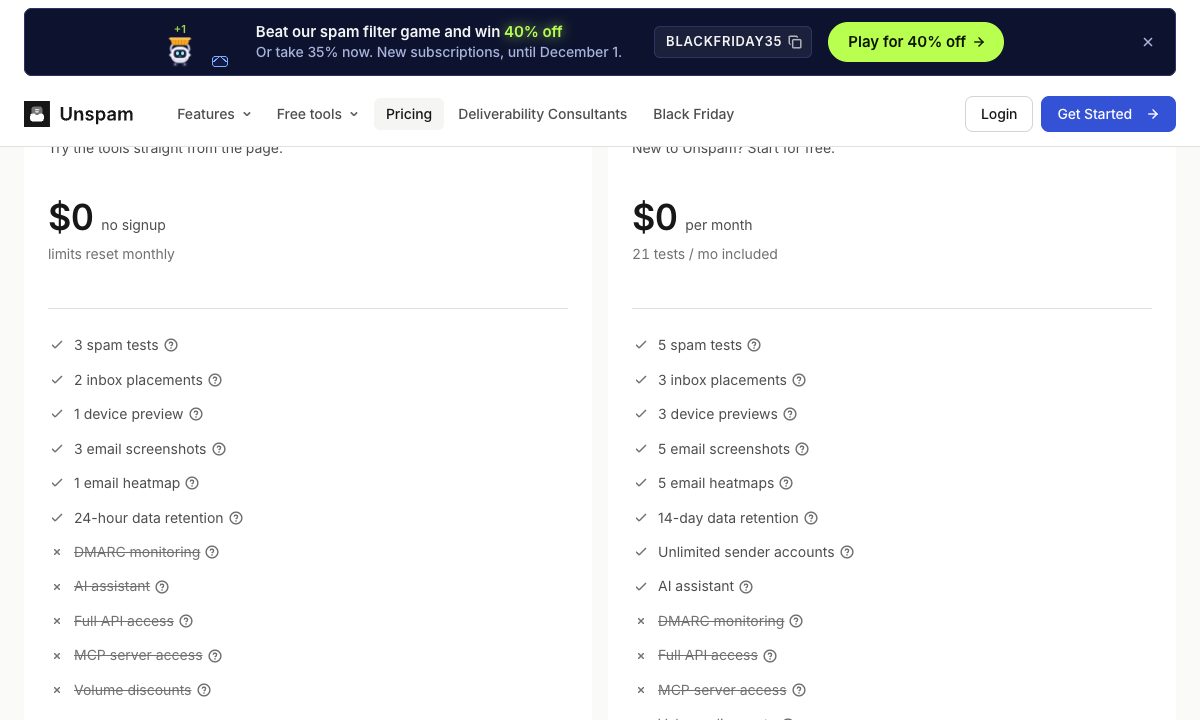
The free plan includes 21 tests a month, 3 of them inbox placements. The Custom plan charges $0.50 per inbox placement and $0.18 per spam test, never per inbox or per seat. For hands-on help, Unspam works with Email Industries' deliverability consultants, who start with a consultation call and an audit, then help with fixes such as IP warmup and list hygiene. Consulting is quoted on that call.
We put it first because one test covers most of the checklist above: placement, content, blacklists and the authentication records Gmail and Outlook ask for, plus reverse DNS and list-unsubscribe. It is priced per test rather than as a monthly bundle, and the free plan is enough to try it.
What it does not do: it does not warm up mailboxes or send your cold email, so it does not replace a warmup tool or a sending platform. If you want a large monthly allowance of tests bundled with DMARC and uptime monitoring, GlockApps' plans may suit you better.
Good for: finding which part of the checklist is failing, before and after each fix.
2. GlockApps: best for a monthly bundle of tests and monitoring
GlockApps is a seed testing tool that also offers free checkers for SPF, DKIM, DMARC and BIMI.
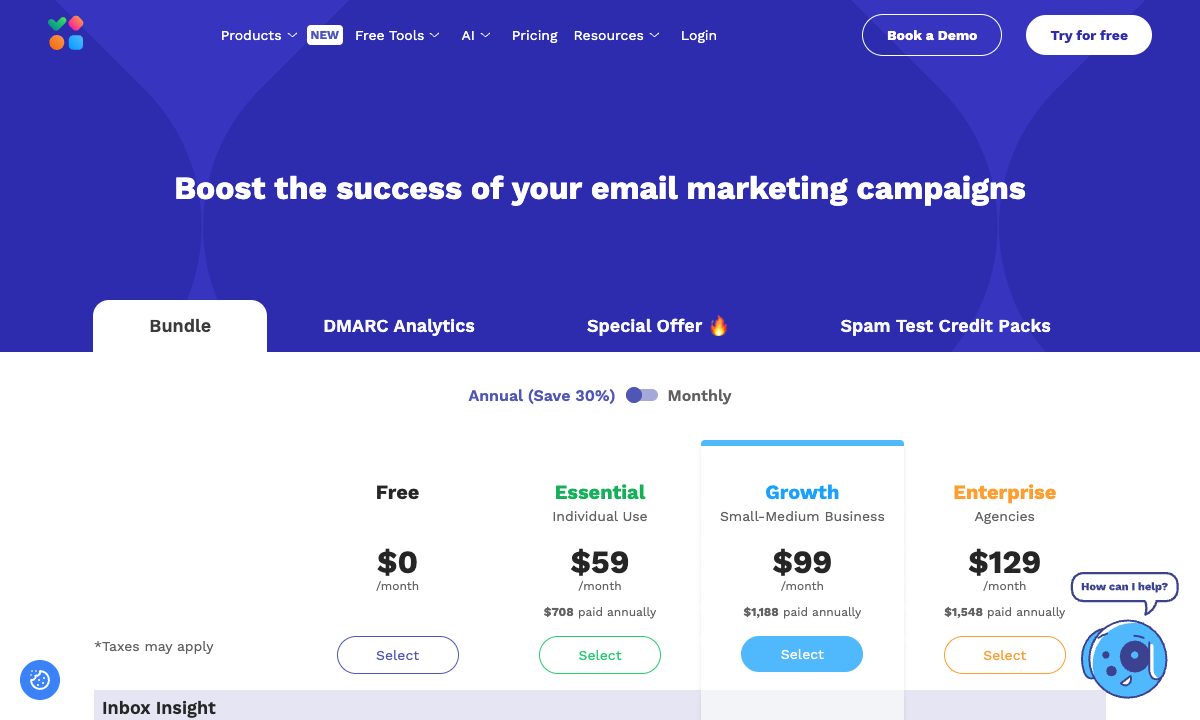
Its free plan includes 2 spam test credits. Essential is $59 a month billed annually ($708 a year), and its plan table lists 360 spam test credits. Growth is $99 and Enterprise is $129, also billed annually. Plans also bundle DMARC analytics, uptime monitors and IP reputation monitors.
What it does not do: the free plan's 2 credits are only enough to try it, and the paid prices shown are for yearly billing.
Good for: teams that test every campaign and want monitoring in the same subscription.
3. mail-tester.com: best free check of a single email
mail-tester.com gives you a random address. Send your email to it and get a score out of 10, with notes on your message, mail server and sending IP.
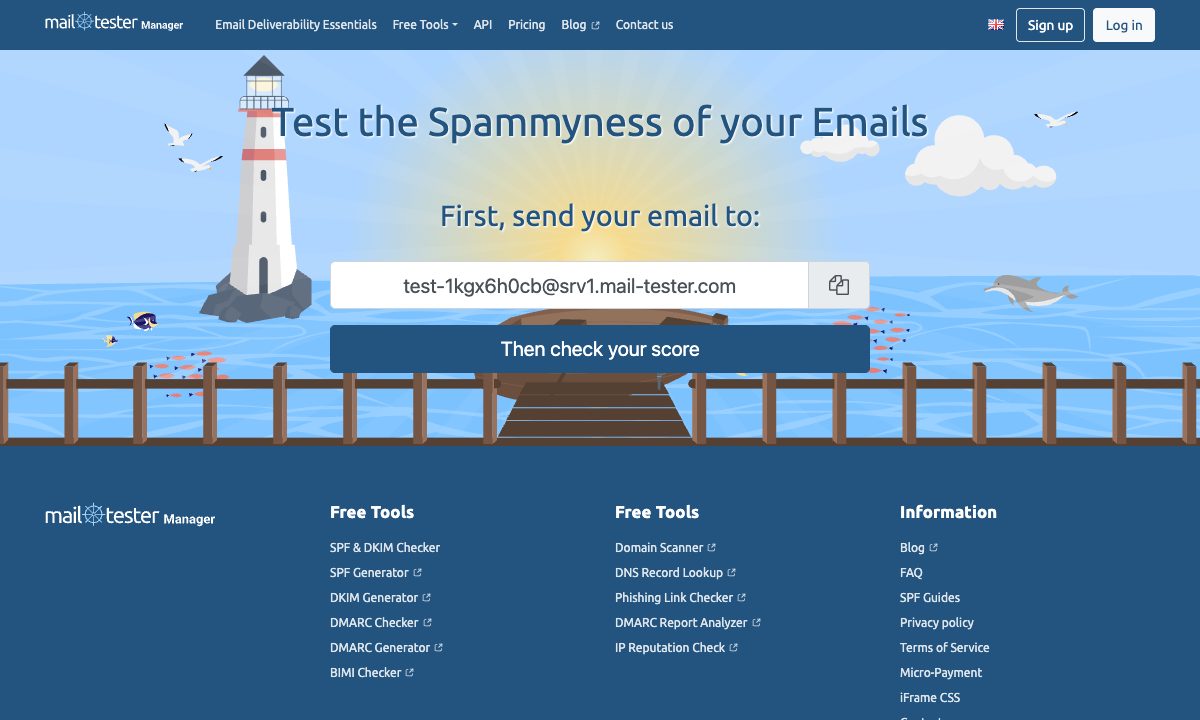
It runs a default install of the SpamAssassin filter. You get 3 free tests in any 24 hours, and results stay visible for 7 days on the free version.
What it does not do: it checks one message, not placement across providers, and its own FAQ warns that a perfect score can still land in spam.
Good for: a quick check of authentication and content before a send.
4. MxToolbox: best free DNS and blacklist lookups
MxToolbox is the standard free toolbox for DNS lookups and blacklist checks. Its blacklist check tests an IP against more than 100 DNS-based blacklists.
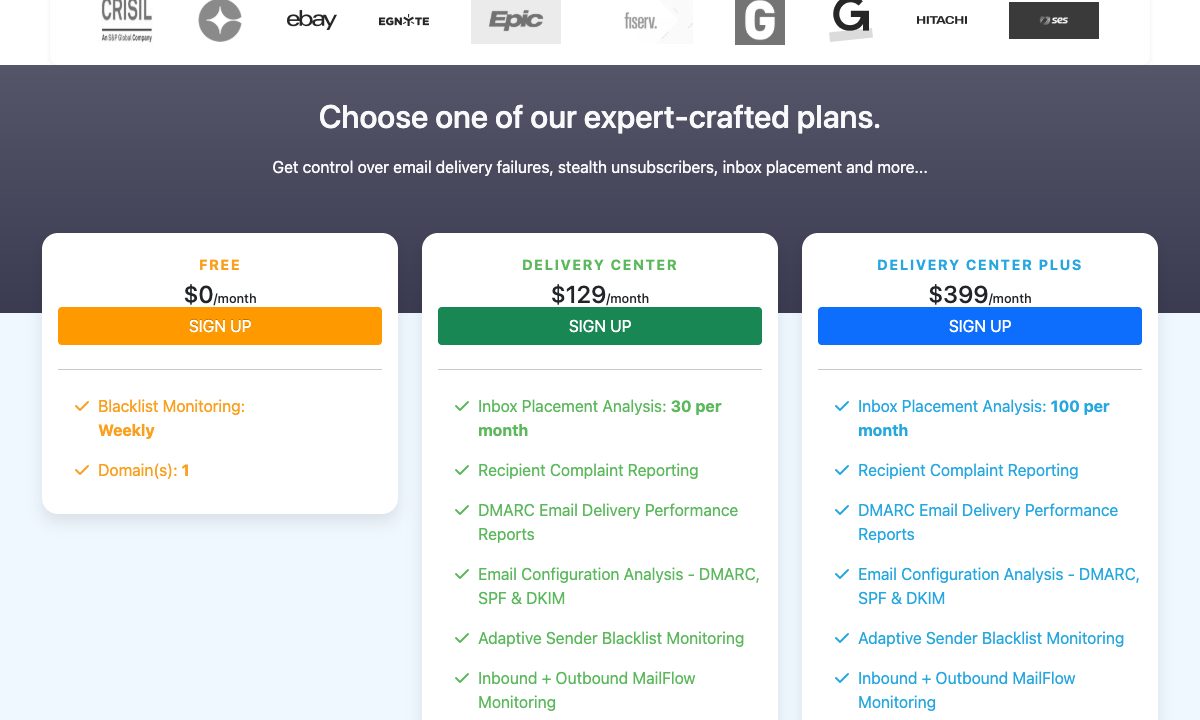
Its free plan adds weekly blacklist monitoring for one domain. The paid Delivery Center plan, at $129 a month, includes 30 inbox placement analyses a month, complaint reporting and DMARC reports.
What it does not do: the free tools check records and lists, not where a message lands. Placement testing starts on the $129 plan.
Good for: confirming your records are right and you are not listed, before you pay for anything.
5. MailReach: best for warming up new mailboxes
Warmup tools connect your mailbox to a network of other mailboxes, which exchange, open, reply to and rescue your messages from spam to build sending history.
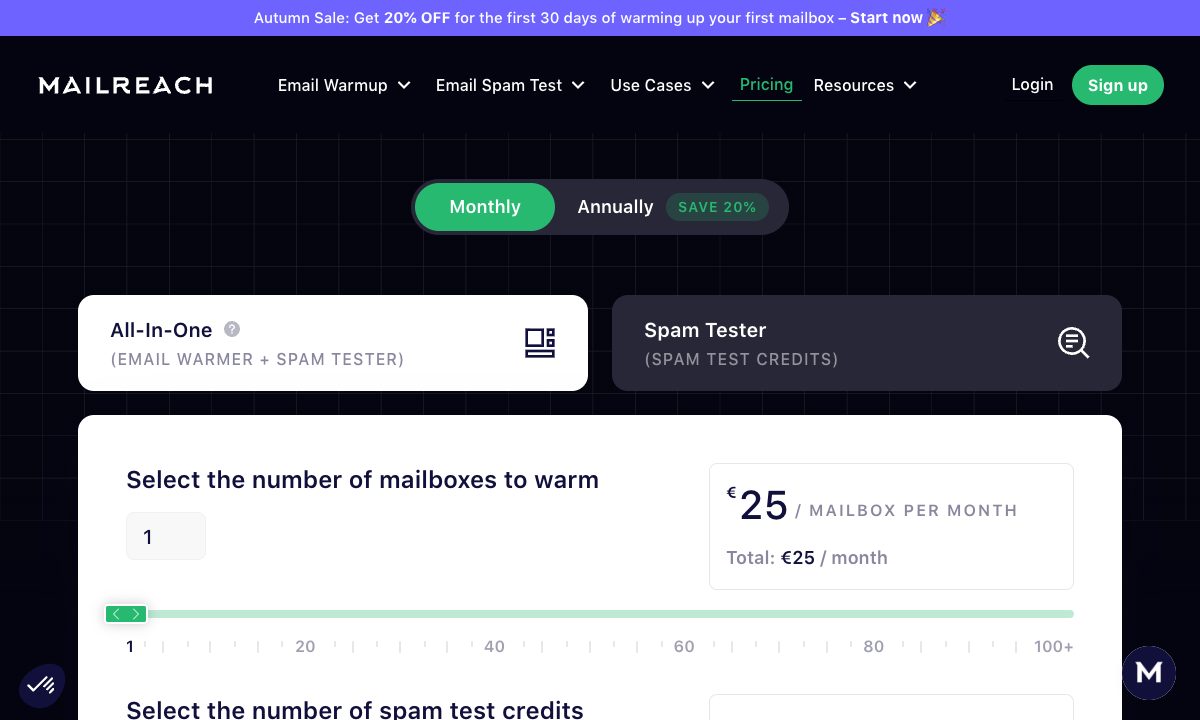
MailReach prices its All-In-One plan per mailbox: €25 a mailbox a month as shown to us, with 20% off on yearly billing. Each mailbox gets automated warmup of up to 100 emails a day, 20 spam test credits, a reputation dashboard and health checks for blacklists, SPF, DKIM and DMARC. Extra test credits are sold separately, and agencies can ask for custom pricing.
What it does not do: it will not repair a failing DKIM record or get you off a blacklist, and the per-mailbox price adds up if you run many mailboxes. For more warmup tools, see email warm-up tools in 2026.
Good for: new domains and mailboxes that need sending history before cold outreach.
6. ZeroBounce: best for list verification with consulting on top
A high bounce rate damages your reputation quickly, and cold lists are often stale. ZeroBounce checks addresses before you send.
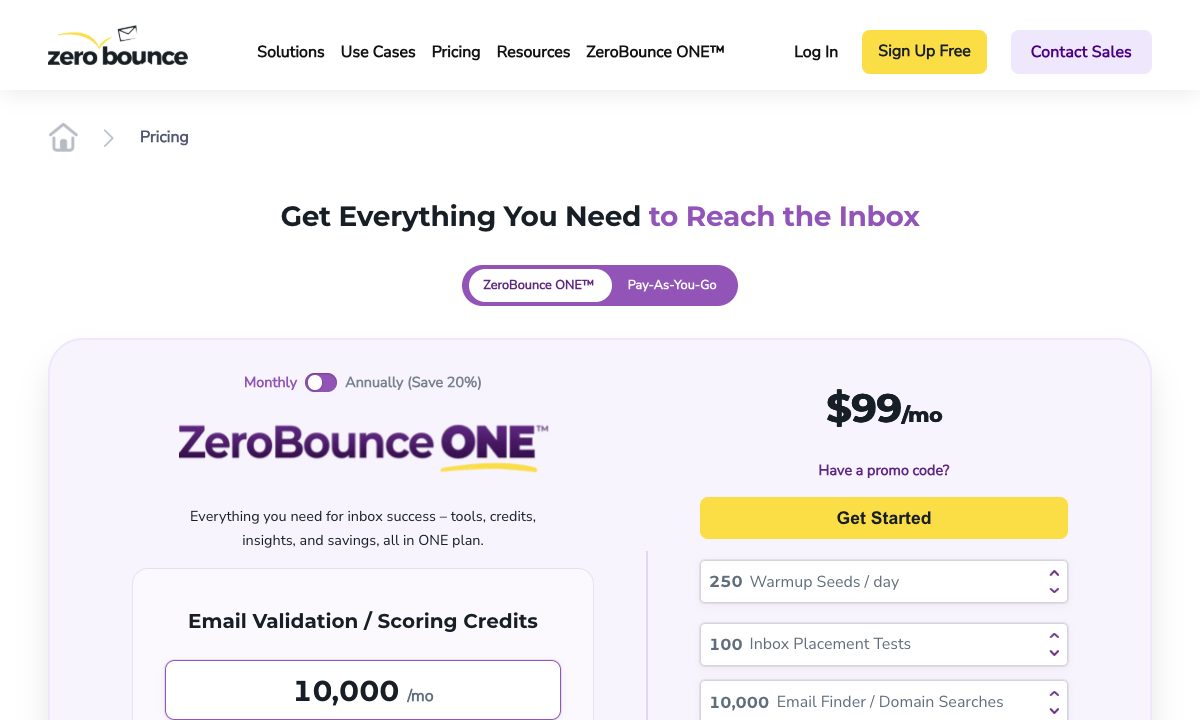
It sorts each address as Valid, Invalid, Catch-All, Spamtrap, Abuse, Do Not Mail or Unknown, and does not charge for Unknown results. Its free plan includes 100 validations a month. Pay-as-you-go starts at $39 for 2,000 addresses, and the ZeroBounce ONE subscription starts at $99 a month.
ZeroBounce also sells deliverability consulting in three forms: an email authentication review, a full deliverability audit, and DMARC and BIMI implementation. It offers a free consultation but does not publish prices. It says the authentication review takes about 1 to 2 weeks.
What it does not do: verification cuts bounces, but it does not show where your mail lands or fix content.
Good for: cleaning a cold list, and handing the problem to a consultant if you prefer.
7. Kickbox: best for simple pay-as-you-go verification
Kickbox returns Deliverable, Undeliverable, Risky or Unknown for each address, and does not count Unknown results against your balance.
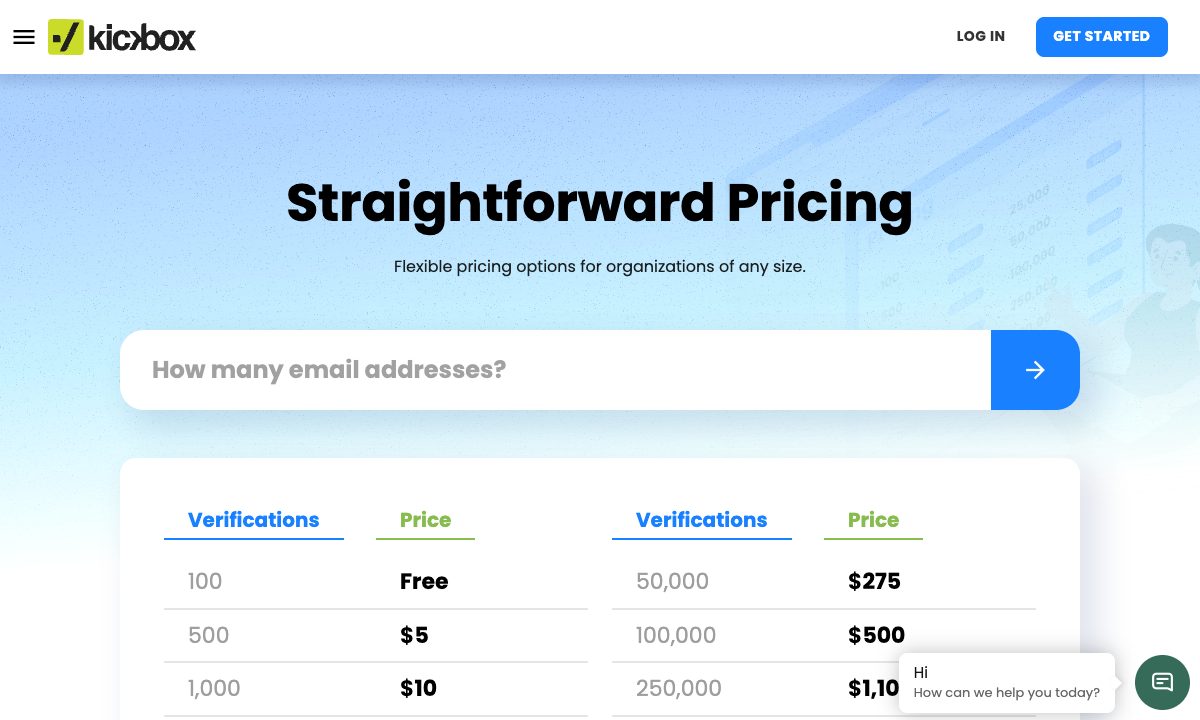
The first 100 verifications are free, then 500 cost $5, 1,000 cost $10 and 10,000 cost $70.
What it does not do: like any verifier, it checks addresses, not placement or content.
Good for: verifying a list now and then without a subscription.
Step 4: Are checker tools accurate?
They are accurate about what they measure, which is narrower than it sounds.
A seed test can tell you:
- Whether your authentication passes at each provider.
- Whether one message, from one sender, landed in the inbox or spam at the seed accounts that day.
- Whether something changed after you edited DNS, content or volume.
It can't tell you:
- Where mail lands for each real recipient. Gmail and Outlook weigh each recipient's own engagement, so someone who opens your mail gets different placement from someone who never has.
- What a receiving company's own filters do. This matters for B2B cold email to Microsoft 365 tenants.
- What happens at volume. A single test doesn't trigger the rate-based filtering that 500 sends in an hour might.
Single-message scores like mail-tester.com's catch obvious problems. A 10 out of 10 doesn't mean you will reach the inbox, only that none of the checks it runs found a problem.
Use these tools to find failures and track trends. If seed placement drops after a change, believe it. If it looks fine but replies have dried up, look at engagement, list quality and volume.
Which tool should you choose?
- You don't know why mail goes to spam: run a placement test first. Unspam to diagnose in one test, or GlockApps if you want a monthly bundle with monitoring.
- You want a free check today: mail-tester.com for one message, MxToolbox for records and blacklists.
- Outlook junks you but Gmail doesn't: check reverse DNS, register your IP with Microsoft SNDS, and run a placement test that includes Outlook.
- Your domain or mailboxes are new: a warmup tool such as MailReach, after authentication passes.
- Your bounce rate is high: verify the list with ZeroBounce or Kickbox before the next send.
- You want someone to fix it: Unspam's consultants or ZeroBounce's consulting.
A short checklist
- Confirm SPF, DKIM and DMARC pass and align, for every service you send through.
- Check your domain and IPs against blacklists.
- If you send from your own IP, set valid reverse DNS and register the IP with Microsoft SNDS.
- Verify your list and remove invalid addresses.
- Simplify content: fewer links, no shorteners, no first-touch attachments.
- Add one-click unsubscribe to marketing mail if you send at volume.
- Run a placement test to see which providers filter you.
- If the domain or mailbox is new, ramp up volume slowly, with or without a warmup tool.
- Test again after each change, so you know what fixed it.
FAQ
My cold emails keep going to spam. What tools can help?
It depends on the cause. For authentication and blacklist problems, start with MxToolbox or mail-tester.com, both free. To see where mail lands at each provider, run a placement test with Unspam or GlockApps. For new mailboxes with no history, use a warmup tool such as MailReach. For a high bounce rate, verify your list with ZeroBounce or Kickbox.
How do I stop Outlook from marking my emails as junk?
Check that SPF, DKIM and DMARC pass and align. Microsoft requires all three for domains sending more than 5,000 emails a day to Outlook.com. If you send from your own IP, make sure it has valid reverse DNS and sign up for Microsoft SNDS to see its reputation. If you are blocked, fix the cause, then contact Outlook.com deliverability support. For B2B mail, ask whether the recipient's admin has a rule in place.
My emails are landing in spam. How do I fix this?
Find the cause before you change anything. Check authentication, then blacklists, then content, then volume. Run a placement test before and after each change so you know which fix worked.
What tool can I use to test whether my email will land in spam before sending?
A seed inbox placement test sends your real message to test inboxes at the major providers and reports where it landed. Unspam and GlockApps both do this, and both have a free plan to try it. For a quick free check of a single message, mail-tester.com gives you a score with notes on what to fix.
Do I need a warmup tool?
You do if your domain or mailboxes are new and you plan to send cold email at volume. You don't if the problem is authentication, a blacklisting, bounces or content, because warmup won't fix those.